Calendar view
Use the calendar view in Diarly to explore past entries, view memories, and track writing and mood patterns across time.
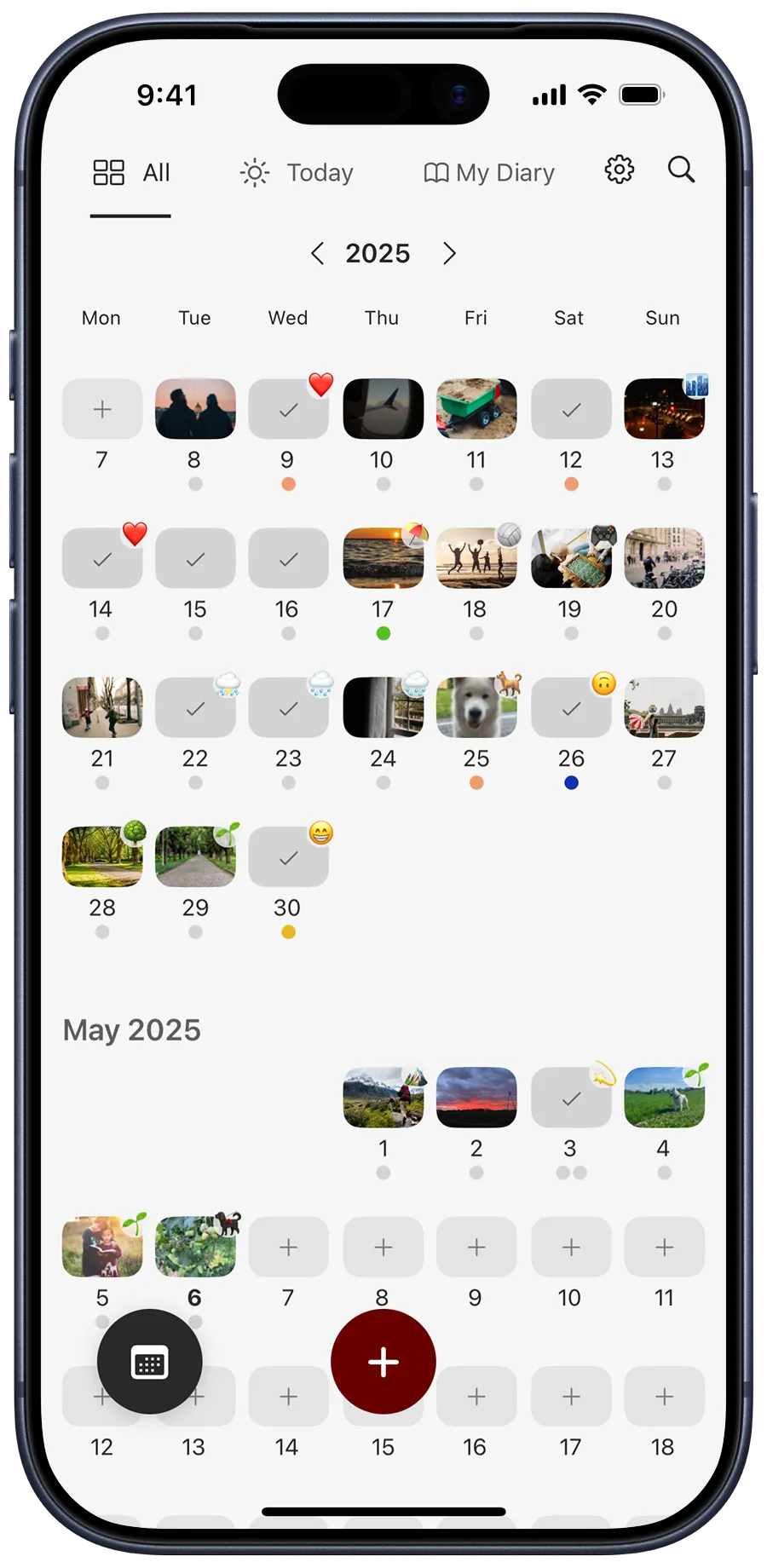
What you see in the calendar
- Days with entries: Marked with a checkmark. If a photo is attached, the first image of the day is shown.
- Today’s date: Highlighted with color and bold.
- Badges: If you use emoji badges, the assigned emoji appears on the top right of the date.
- Mood tracker: Moods appear as colored dots below the date. Each dot represents a separate entry and reflects its mood.
Navigate the calendar
- Scroll to move between months.
- Use the arrows next to the year to switch years.
Open the calendar
- Today view: Open the calendar from the Calendar widget.
- All or Journal views: Tap or click the view button, then choose Calendar.
- On iPhone, the view button is on the bottom-left corner of the screen.
- On iPad and Mac, the view button is in the top-left corner of the navigation area.
- Editor: Tap the date at the top of the editor to open that day in the calendar.