Gallery view
Use the gallery view in Diarly to browse all images, videos, sketches, and documents from your journal entries in one place.
Open the gallery view
- All view or Journal view: Tap or click the view button, then choose Gallery.
- On iPhone, the view button is next to the navigation controls.
- On iPad and Mac, the view button is in the top-left corner of the navigation area.
- Today view: Open the gallery from the Gallery widget.
What you see in the gallery
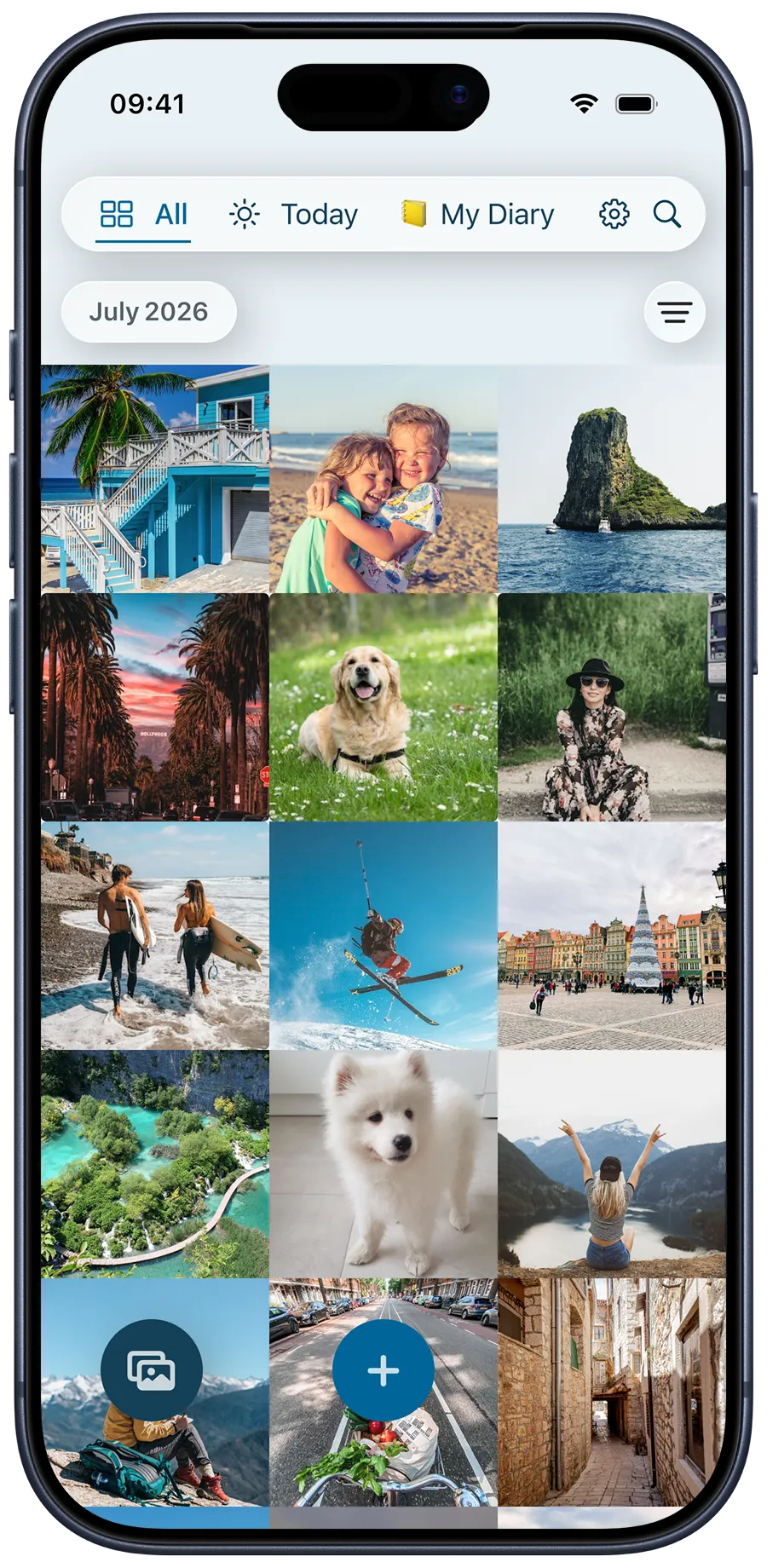
- Images and videos: All media files from your entries, shown in a visual timeline.
- Sketches: Displays all handwritten sketches created in your journal.
- PDF documents: Lists all PDF files added to entries.
- Hidden items: Items you’ve hidden from the main gallery are shown separately.
💡 You can switch between media types using the Filter button in the top right corner of the screen.
Hiding and restoring media
- Hide from gallery: Right-click (iPad/Mac) or long-press (iPhone) an item and select
Hide from Gallery. - Restore to gallery: Navigate to hidden items, then right-click or long-press the item and choose
Restore to Gallery.