Timeline and notes view
Diarly offers two ways to organize your writing: Timeline and Notes. Each view is designed for a different journaling style — so you can write freely without managing folders.
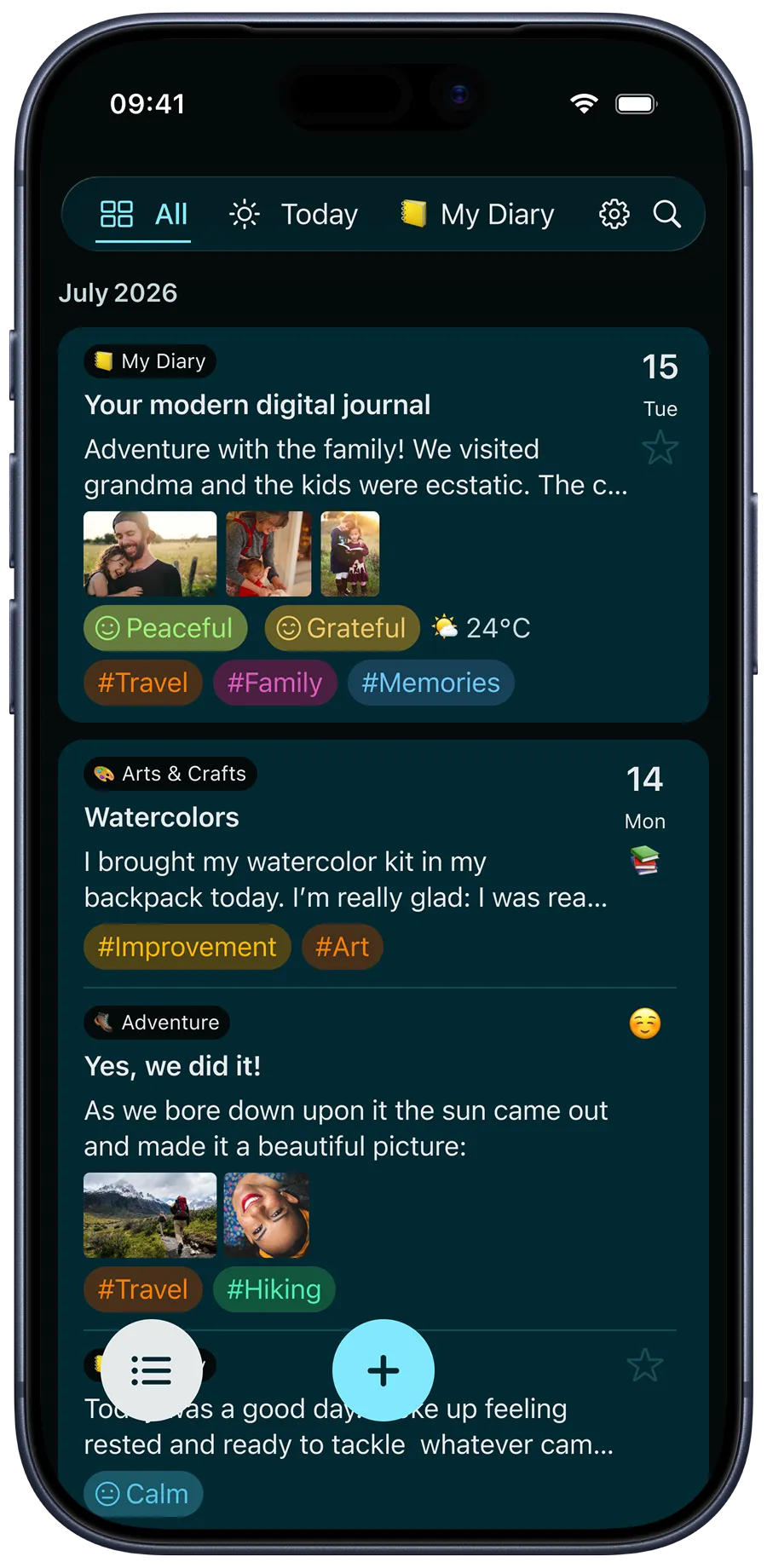
Timeline vs. Notes
- Timeline — Entries are grouped by day. Perfect for daily writing, reflections, or time-based logs. Each day creates its own page.
- Notes — Entries are undated. Great for drafts, ideas, quotes, or any writing that doesn’t need a date.
✍️ When creating a new entry, choose whether to add it to Timeline or Notes.
Learn more in Writing your first entry.
Navigate between Timeline and Notes
On all devices, you can switch between Timeline and Notes in the same way.
-
Open the Today or Journal tab.
-
Use the visible widgets to open Timeline or Notes for a specific journal.
-
To see all your entries across journals, open the All View.
- On iPhone, use the toggle in the lower-left corner to switch between Timeline and Notes.
- On iPad and Mac, use the switch in the upper-left corner.
⚙️ Use Customize & Reorder to show or hide Timeline and Notes, and set a default view for each journal. Want to control what appears in Timeline? See Timeline settings.