Map view
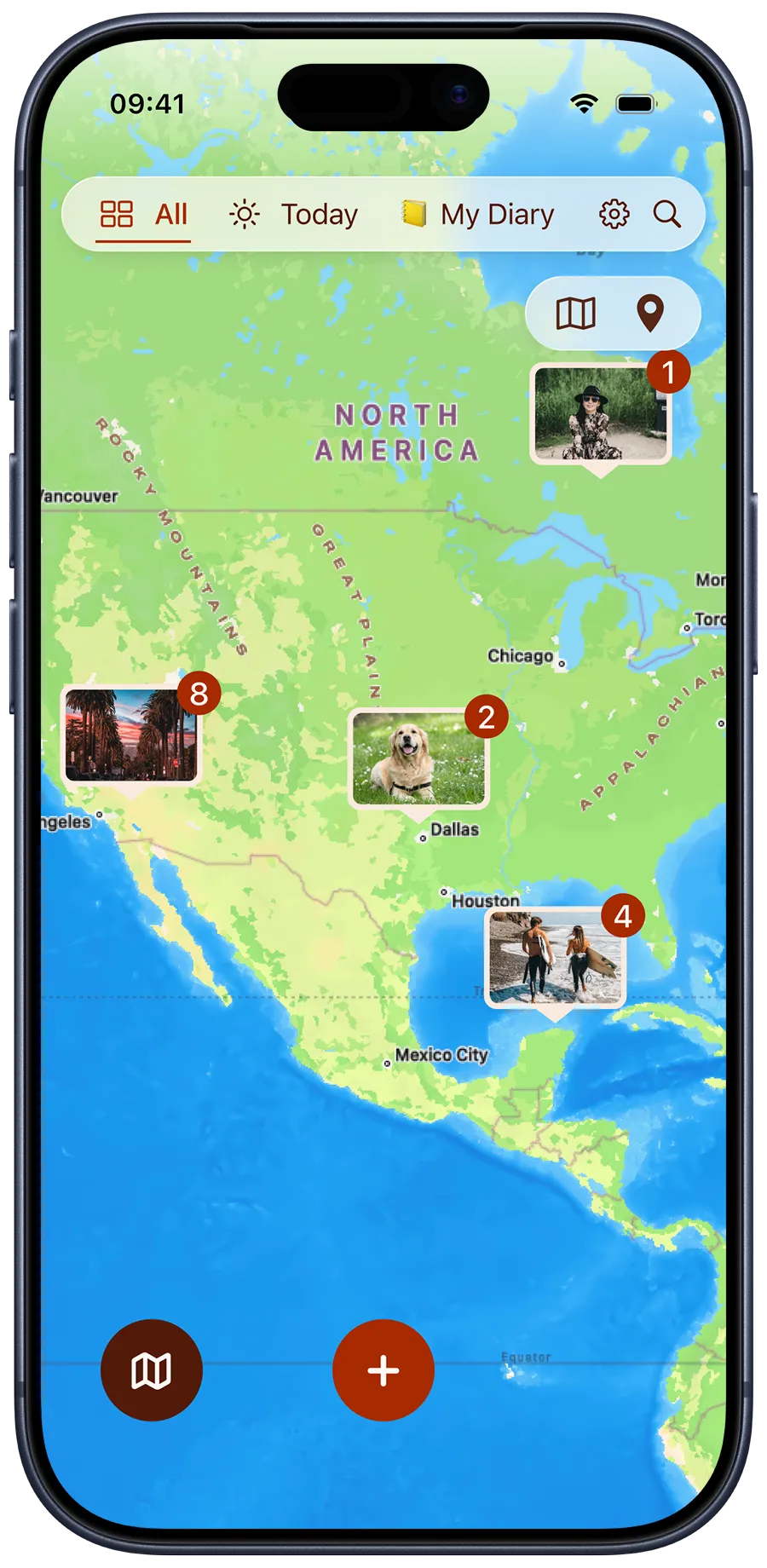
Use the map view in Diarly to explore journal entries that include location data. Locations can be added manually, from photos, or using a slash command.
Open the map view
All view or Journal view: Tap or click the view button, then choose Map.
- On iPhone, the view button is next to the navigation controls.
- On iPad and Mac, the view button is in the top-left corner of the navigation area.
What you see in the map view
- Entries on the map: Pins show entries with added locations.
- Edit location: Tap or click the location name in an entry, then select Edit.
Adding a location
You can add a location while writing in the editor using the slash command:
- Type
/locationto choose a place. - Use Insert current location to add your position (make sure location access is allowed in Privacy settings).
Other ways to add a location
- From a photo: If you insert a photo with GPS data (e.g. from iPhone), Diarly will automatically add the location. You can disable this in the Settings.
- From Google Maps: Copy a location link and paste it into your entry to enter the location.