Sidebar
On Mac and iPad, the sidebar appears on the left. Use it to search your entries, open Today, view all journal content, and switch between your journals.
To show or hide the sidebar, click the sidebar icon. If the editor is in full-screen mode, click the icon in the top-left corner.
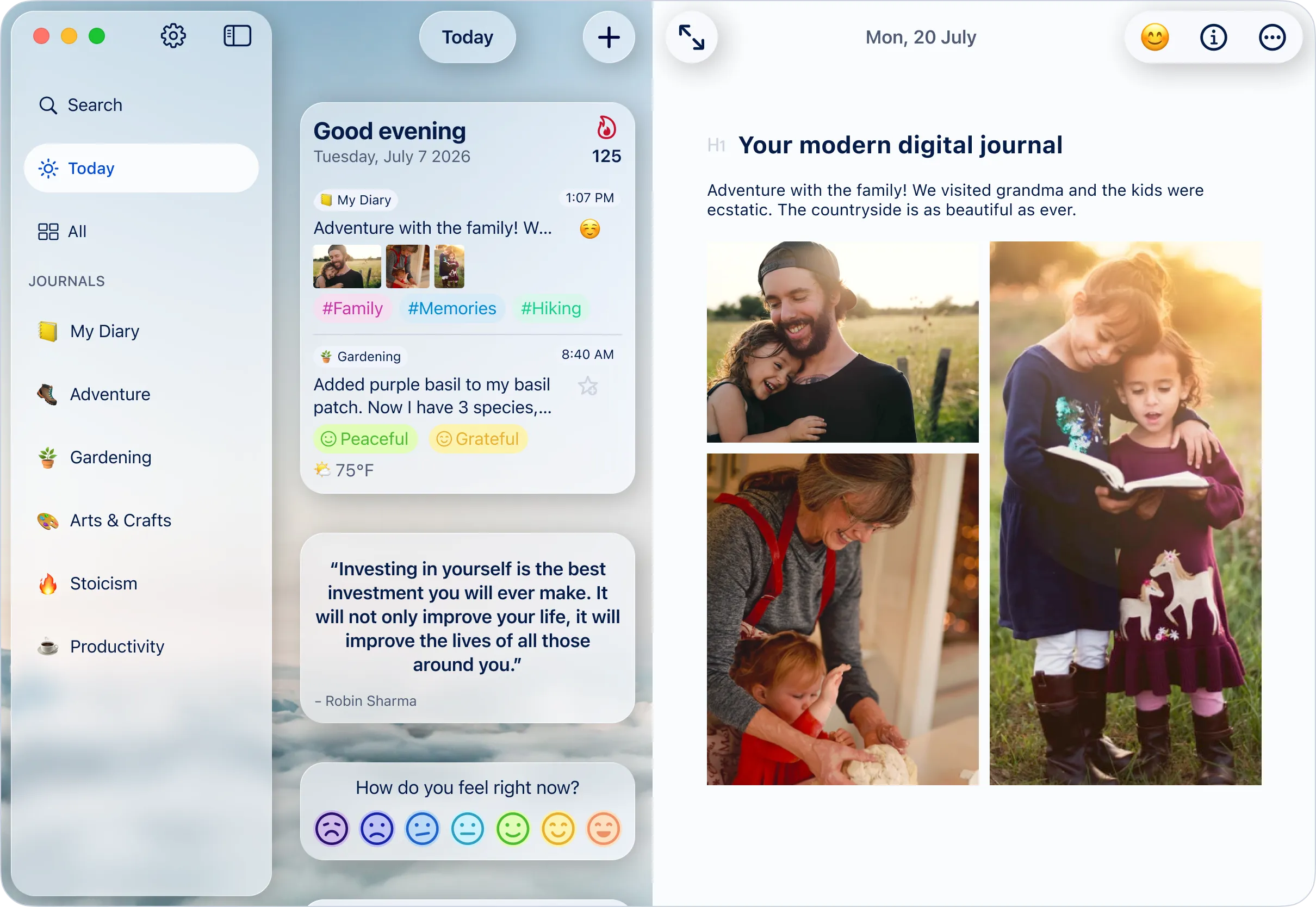
Settings and search
At the top of the sidebar, click the Settings button to open Settings.
Use Search to find content across your journals. Search also works with tags and special keywords. Learn more about advanced search options.
Main views
Below Search, you’ll find the main views. These are always available and control what appears in the journal view.
- Today highlights today’s entries, memories, and insights from all your journals.
- Insights shows highlights and trends based on your entries.
- All shows entries and notes from all your journals in one place.
Journals
Below the main views, you’ll find your journals. Select a journal to show only content from that journal. Choose your favorite journal view —Feed, Timeline, Calendar, Notes, Gallery, or Map— and Diarly will remember your favorite view for each journal.
You can create journals, change their order, and manage which journals appear in the sidebar in Settings > Journals.
📚 Multiple journals are available to Diarly Premium users. The free version includes one journal with unlimited entries.