Settings overview
To open Settings on Diarly:
- On iPad and Mac: Click the settings icon in the sidebar or press
⌘,. - On Mac: You can also go to
Diarly > Settingsin the menu bar. - On iPhone: Tap the gear icon in the top-right corner of the screen.
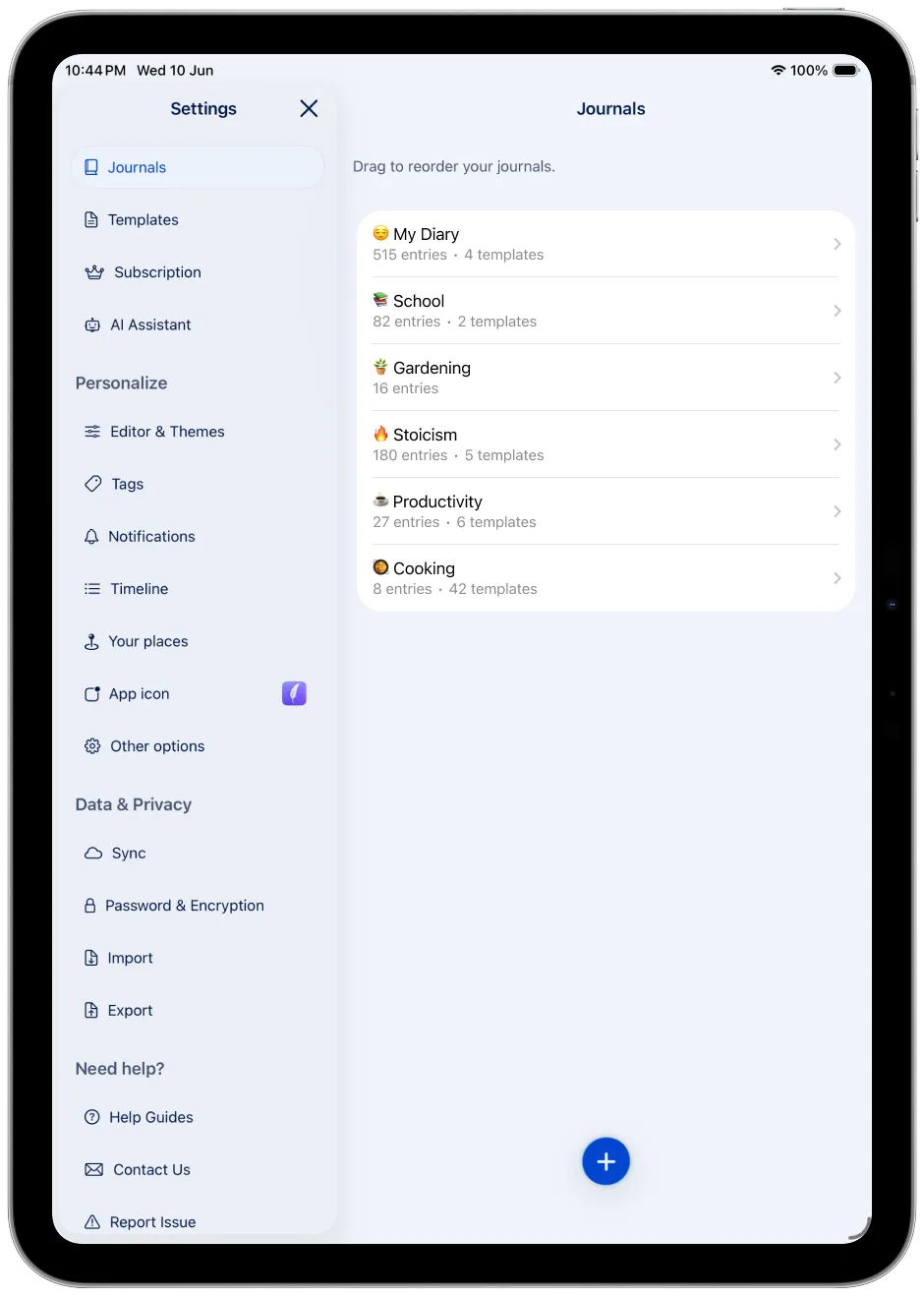
Categories
- Journals: Manage your journals.
- Templates: Set up and edit templates.
- Subscription: View or manage your subscription status.
- AI Assistant: Configure the AI Assistant.
Personalize
- Editor & Themes: Personalize the editor and appearance.
- Tags: Organize entries with tags.
- Notifications: Set reminders and writing notifications.
- Timeline: Adjust timeline preferences.
- Your places: Save and name places you visit often, such as home or work.
- App icon: Change the app icon.
- Other options: Adjust additional app preferences.
Data & Privacy
- Sync: Keep your journals up to date across devices.
- Password & Encryption: Protect your data with encryption.
- Import: Import journals.
- Export: Export your data.
Need help?
Access help guides, contact support, or report an issue.
Diarly
Find links to community resources, legal information, and more.
Additional settings
On iPhone and iPad, importing and exporting journals are available in the Settings. On Mac, these are found in the Menu Bar.